
1. Prerequisites & System Requirements
PasteAnywhere is a lightweight peer-to-peer utility. Before pairing your devices, verify that your environment satisfies the following basic criteria:
- Local Network Subnet: Both your Windows PC and your Android phone must be connected to the exact same private Wi-Fi network or local subnet. PasteAnywhere does not route over public internet connections or cellular (5G/LTE) networks.
- Windows PC: Windows 10 or Windows 11 (64-bit). The installer is self-contained (.NET 10) and does not require an external runtime installation.
- Android Phone: Android 8.0 (Oreo, API 26) or later.
- Network Port: The Windows service listens on TCP port 8765. Your local Windows Firewall must permit inbound traffic on this port.
2. Installing & Running on Windows
- Download the official installer:
PasteAnywhere-Setup.exefrom the Download page. - Run the installer. By default, it installs per-user without requiring administrative elevation, placing shortcuts in your Start Menu and Desktop.
- Launch PasteAnywhere. Notice that no large main window stays open permanently. PasteAnywhere runs as a silent background service in your Windows System Tray.
- Locate the PasteAnywhere icon in your Windows System Tray (the notifications area near the clock in the bottom-right corner of your taskbar).
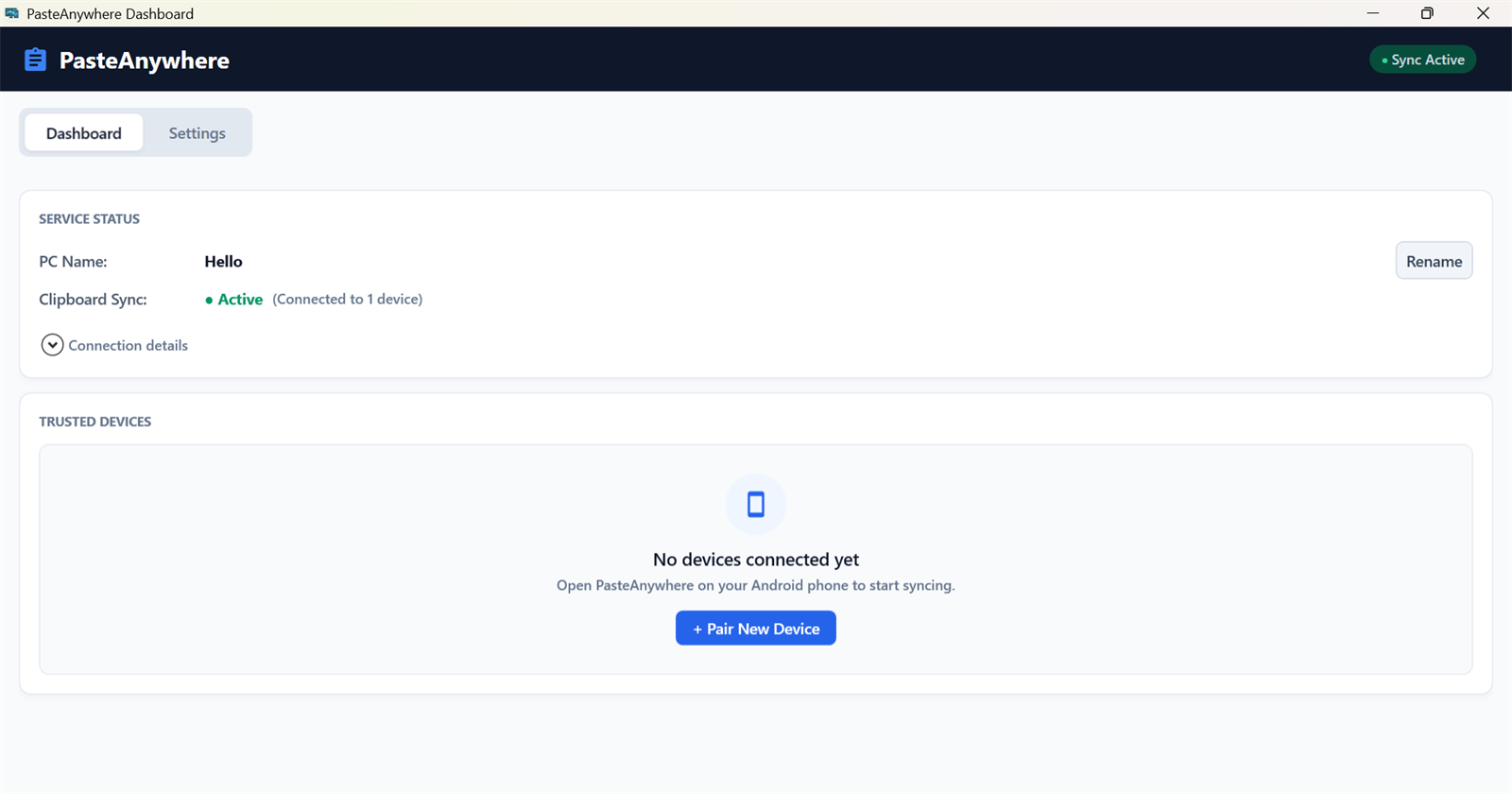
- Opening the Dashboard: Double-click the tray icon, or right-click it and select Open Dashboard.
- Closing the Window: Clicking the "X" button on the Dashboard hides the window back to the tray; it does not quit the application.
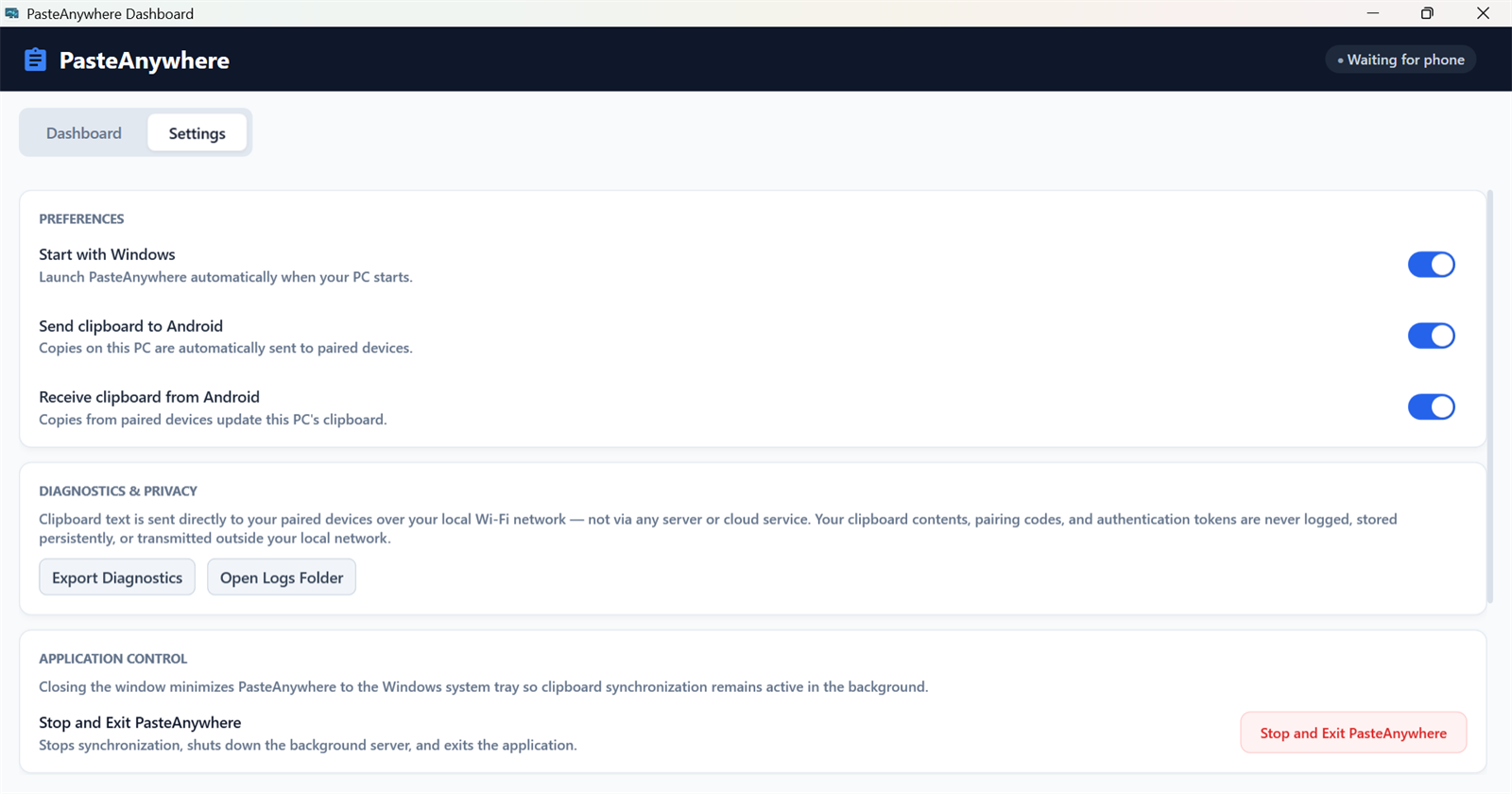
- Exiting Completely: Right-click the system tray icon and select Stop and Exit PasteAnywhere.
- Start with Windows: To have PasteAnywhere start automatically, open the Dashboard → Settings tab → toggle Start with Windows on.
3. Installing on Android & Permissions
- Download
PasteAnywhere-1.0.0.apkto your Android phone. - Open your phone's File Manager or Downloads folder and tap the APK to install. If prompted, grant permission to "Install unknown apps" for your file manager.
- Open PasteAnywhere on your phone. The app will prompt you for the necessary permissions:
- POST_NOTIFICATIONS (Notifications): Required on Android 13+ so the app can alert you when your PC has sent clipboard text. Tapping this notification pastes the text to your clipboard.
- SYSTEM_ALERT_WINDOW (Display over other apps): Required if you use Quick Sync. This permits the unobtrusive floating rocket button to appear over other apps.
- FOREGROUND_SERVICE (Connected Device): Keeps the local WebSocket connection alive in the background while you are on your home Wi-Fi network.
- CAMERA (Optional): Only requested if you choose to pair by scanning the QR code on your PC screen rather than typing the 6-digit PIN.
4. First-Time Device Pairing
Devices must be explicitly paired before any clipboard text can be exchanged. Unpaired devices cannot read or send clipboard payloads.
- Ensure your PC and phone are connected to the same Wi-Fi network.
- Open the PasteAnywhere Android app.
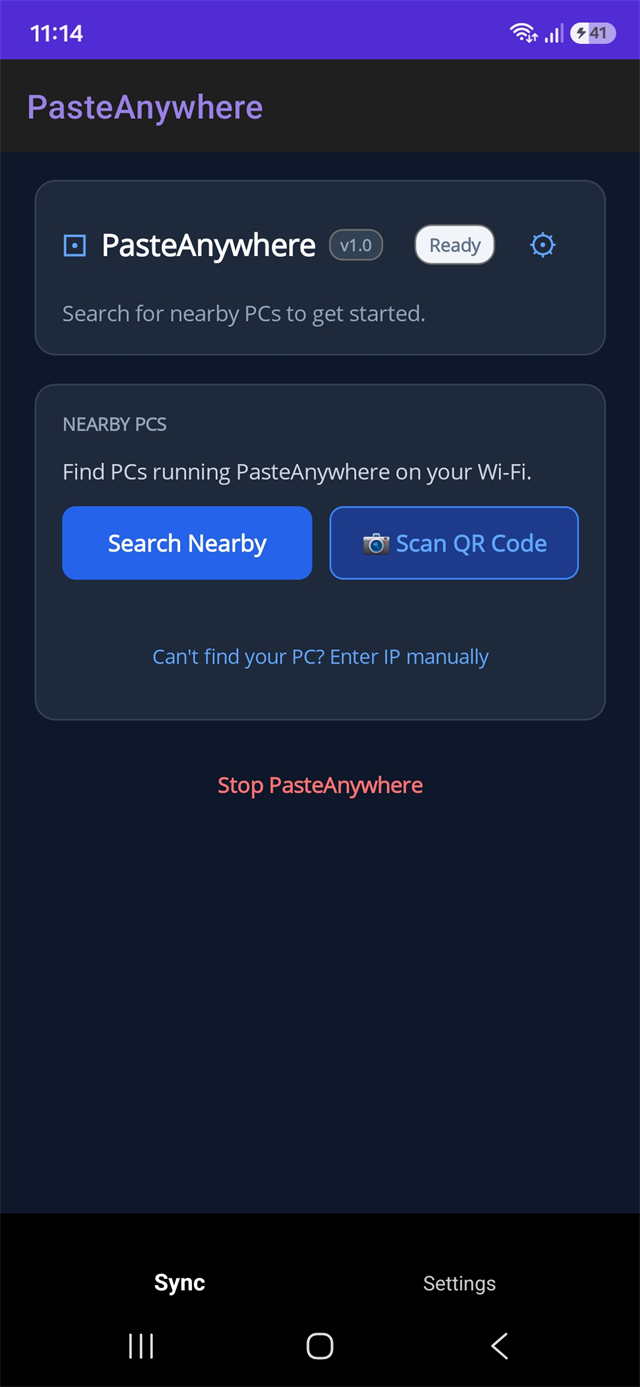
- Tap Search for PCs on Network. The app will automatically discover your desktop using zero-configuration mDNS (
_pasteanywhere._tcp.local.). - (Manual IP Fallback): If your router disables mDNS broadcast, check your PC's local IP address in the Windows Dashboard drawer (e.g.
192.168.1.45), enter it into the Android app, and tap Connect Manually. - Tap Pair Device on Android.
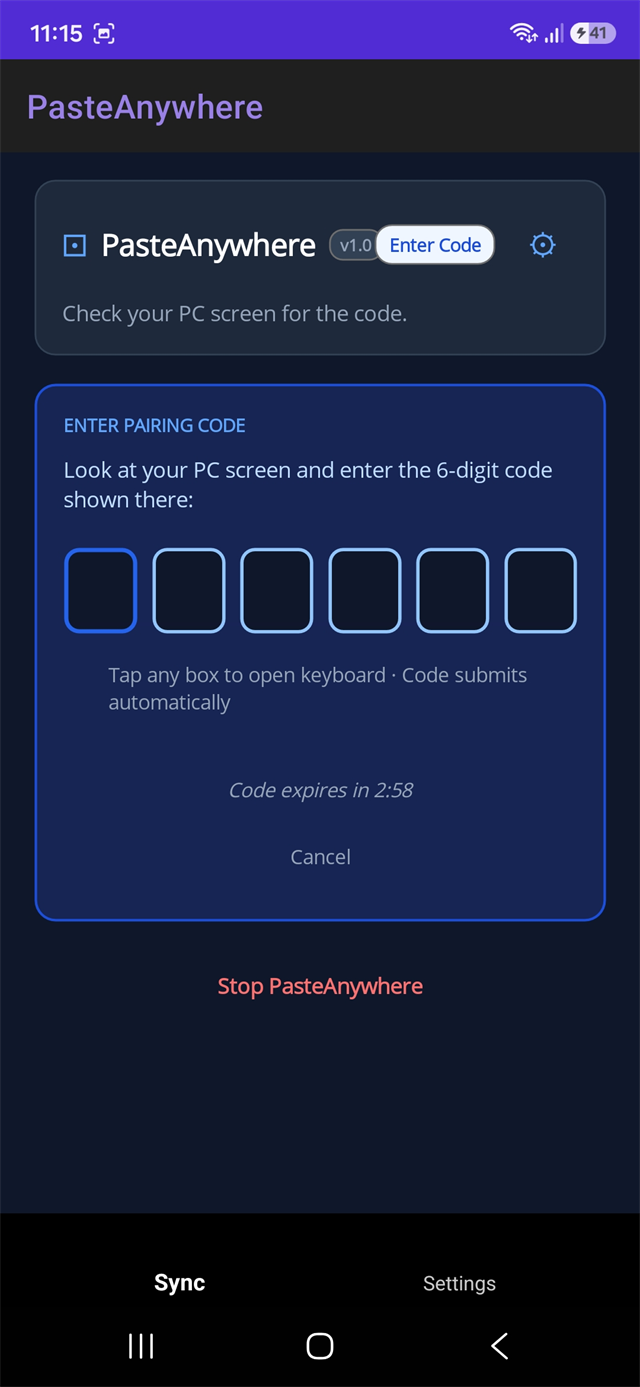
- A pairing dialog will appear on your Windows PC showing a temporary 6-digit PIN and a QR Code.
- Either type the 6-digit PIN into your phone and tap Confirm PIN, or scan the QR code using your phone's camera.
- Once verified, Windows generates a cryptographic Bearer token (stored only as a SHA-256 hash), and your phone displays "Status: PC Paired & Connected".
Pairing sessions enforce a maximum of 5 attempts and a 2-second rate limit. If incorrect PINs are entered 5 times, the pairing session is automatically invalidated and a new PIN must be generated on your PC.
5. PC → Phone Clipboard Sync
Sending copied text from your Windows PC to your phone:
- On your Windows PC, select any text and copy it using
Ctrl + Cor right-click → Copy. - PasteAnywhere detects the copy event and forwards it immediately over the authenticated local connection to your connected phone.
- Almost instantly, a System Notification appears on your Android phone showing the incoming text preview.
- Tap the notification. PasteAnywhere will commit the text into your Android clipboard.
- You can now long-press and select Paste inside any Android app.
Modern Android security strictly blocks apps running in the background from silently altering the system clipboard. Tapping the incoming notification provides the mandatory explicit user confirmation required by Android.
6. Phone → PC Clipboard Sync
Sending copied text from your phone to your Windows PC:
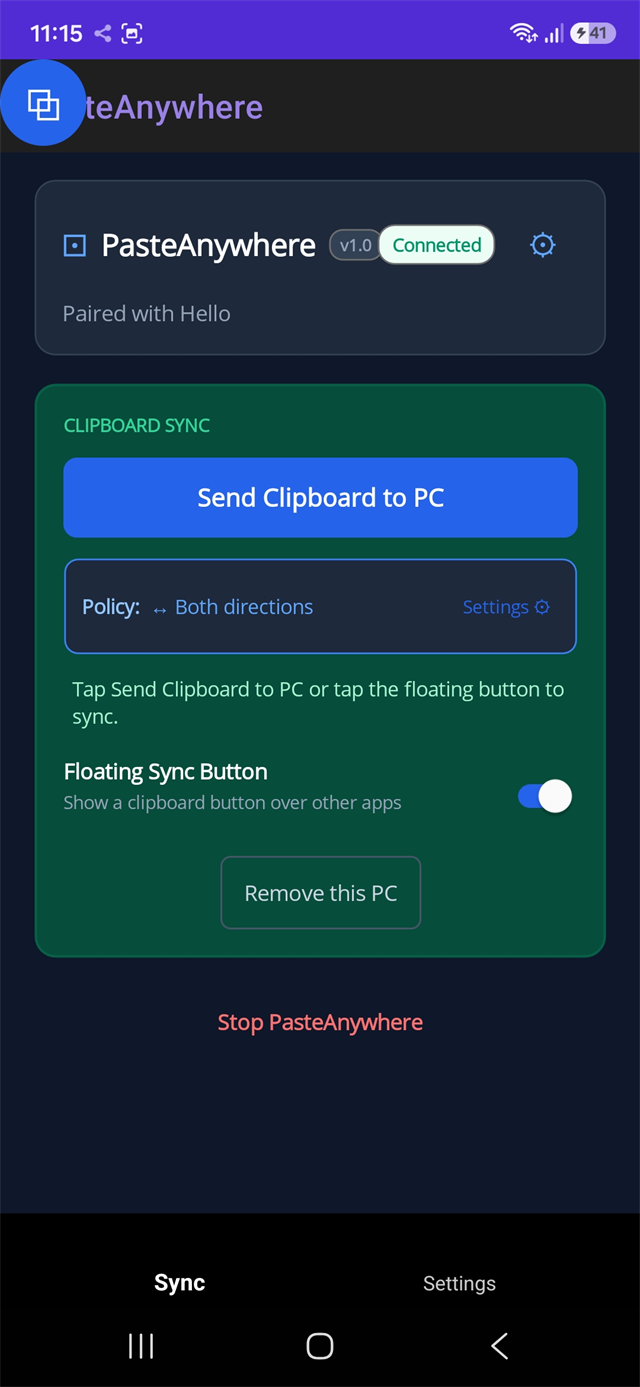
Method 1: Quick Sync Floating Rocket (Recommended)
- Copy any text or emojis in any app on your phone.
- Tap the floating Quick Sync rocket button hovering on your screen.
- The text is immediately dispatched to your PC over the local network.
- Switch to your PC and press
Ctrl + V. The text pastes instantly.
Method 2: Manual Send via App
- Copy text on your phone.
- Open the PasteAnywhere Android app.
- Tap Send Android Clipboard to PC.
7. Per-Device Directional Sync Policy
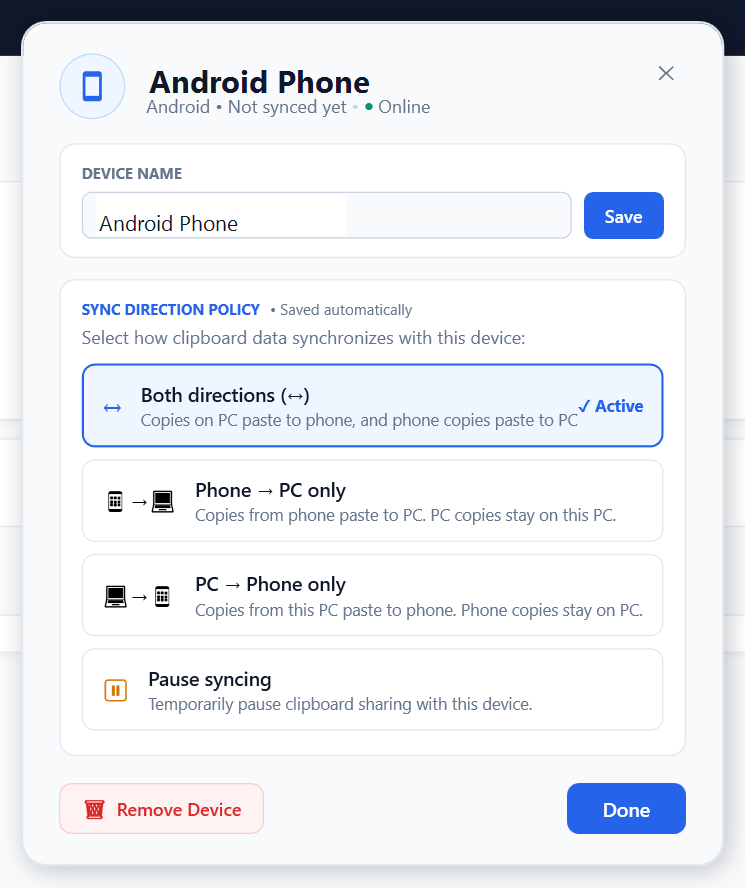
From the Windows Dashboard, you can customize the synchronization policy for each paired phone individually:
- Open the Windows Dashboard and navigate to the Dashboard tab.
- Under Trusted Devices, locate your device row and click the ⋯ (overflow) button.
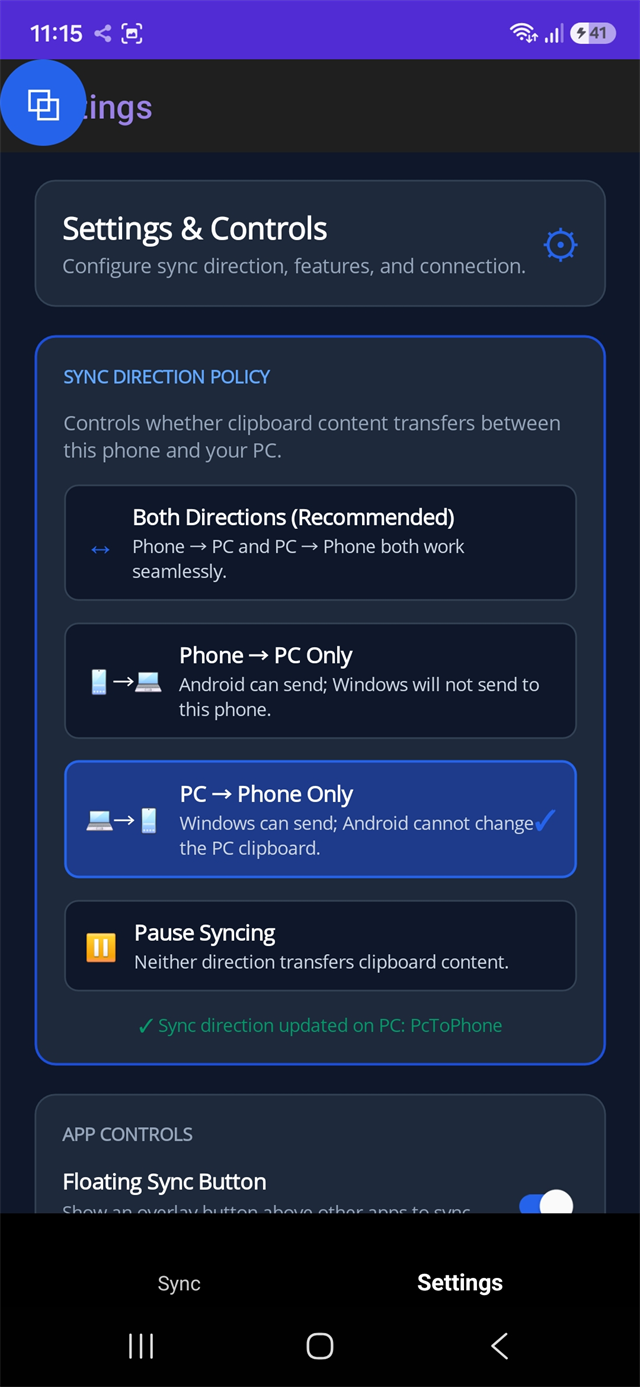
- Select Sync Direction:
- Both directions (↔) [Default]: Copies on PC forward to phone; copies on phone update PC.
- PC to Phone only (→): Copies on PC forward to phone; incoming dispatches from phone are ignored.
- Phone to PC only (←): Phone dispatches update PC clipboard; PC copies are never sent to phone.
- Paused (⏸): All clipboard synchronization is paused, but pairing credentials remain saved.
8. Quick Sync Floating Rocket Overlay
Quick Sync is a lightweight Android overlay that lets you trigger clipboard sync without having to switch back and forth between apps.
- To Enable: Open the PasteAnywhere Android app, scroll to Quick Sync, and tap Enable Quick Sync. Allow the "Display over other apps" permission when prompted.
- To Disable: Open the app and tap Disable Quick Sync, or remove the device from your Windows Dashboard.
- Foreground Service: While Quick Sync is active, Android displays a persistent notification ("PasteAnywhere is running"). This is necessary to keep Android from terminating the background service to save battery.
9. Managing, Renaming & Revoking Devices
All paired devices are listed in the Windows Dashboard under Trusted Devices with real-time online/offline indicators and last sync timestamps.
- Rename Device: Click ⋯ → Rename to give your device a recognizable label (e.g. "Work Pixel", "Personal Galaxy").
- Remove Device: Click ⋯ → Remove. This immediately revokes the cryptographic Bearer token on Windows. On your phone, the status will immediately change to "Unpaired", and the floating button will disappear.
10. Supported Content & Limitations
| Content Type | Status | Details |
|---|---|---|
| Plain Text | Supported | Standard ASCII, letters, numbers, symbols, multiline blocks. |
| Unicode & Emojis | Supported | Full UTF-8 support including international scripts, accents, and emojis. |
| Payload Size Limit | 256 KB Limit | Maximum 262,144 bytes per clipboard event to protect device memory. |
| Images & Media | Not Supported | Images and binary media are not transferred. |
| Files & Folders | Not Supported | File drag-and-drop or file path transfer is not supported. |
| Rich Text Formatting | Not Supported | Rich HTML/RTF styles (e.g. bold, colored font) are stripped to plain text. |
11. Troubleshooting Common Issues
| Issue | Likely Cause | Resolution |
|---|---|---|
| Android cannot discover PC | Devices are on different Wi-Fi bands (e.g. 2.4GHz guest network vs 5GHz home LAN), router Client Isolation is enabled, or Windows Firewall is blocking inbound port 8765. | Ensure both devices are on the exact same Wi-Fi. Verify PasteAnywhere is running in the Windows System Tray. In the Android app, enter your PC's IP address (shown in the Windows Dashboard) and tap Connect Manually. |
| Windows Firewall prompt | First run of the application on a new network. | Check both Private and Public networks and click Allow access. PasteAnywhere requires local inbound communication on port 8765. |
| Pairing failed / PIN invalid | The PIN expired, or was entered incorrectly more than 5 times. | Close the PIN dialog on Windows and tap Pair Device on Android again to generate a fresh, secure PIN. |
| Unauthorized / Token Expired | The device was removed on Windows, or the Android app was uninstalled. | Removing or reinstalling deletes the token. Simply tap Pair Device on Android to pair the devices again with a new PIN. |
| PC → Phone notification does not appear | Phone is in Do Not Disturb, battery saver killed the background service, or Notification permission was denied. | Go to Android Settings → Apps → PasteAnywhere → ensure Notifications are Allowed. Set Battery usage to Unrestricted. |
| Quick Sync floating button missing | "Display over other apps" permission is disabled. | Open PasteAnywhere on Android, tap Enable Quick Sync, and grant the requested overlay permission. |
| Dashboard does not open when clicked | PasteAnywhere is already running silently in the system tray. | Look for the PasteAnywhere icon in the Windows System Tray (near the clock). Double-click it to bring the dashboard to the front. |